
 ChatGPT
AI Mode
ChatGPT
AI Mode
 Claude
Perplexity
Grok
Claude
Perplexity
Grok
Last Updated on March 15, 2026 by Henry

Table of Contents
Where does your website actually rank on Google?
Most site owners think they know. They’ve searched their keywords a few times and noted their position. But what you see isn’t what everyone else sees.
Google personalizes results based on location, search history, and device, so your position 5 might actually be position 12 for someone in a different city.
Position 3 captures 9% of clicks while position 2 gets 15% and position 1 achieves 27.6%. For a keyword with 1,000 monthly searches, climbing from position 3 to position 1 means jumping from 90 clicks to 276 clicks monthly.
This guide shows you exactly how to determine and check your real Google rankings using three proven methods.
Introduction to Website Ranking
Website ranking is the position your website holds in search engine results pages (SERPs) when users search for specific keywords or phrases. The higher your site appears in these search results, the more visibility and organic traffic you’re likely to receive.
Google is the most widely used search engine, making Google rankings especially important for anyone looking to attract more traffic to their website.
Using a Google rank checker or rank checker tool allows you to see exactly where your site stands for your target keywords, helping you understand your current position and identify opportunities to improve your ranking.
Quick Answer: Best Ways to Check Your Google Ranking
Choose your method based on your situation:
1) Manual Incognito Check – Takes 30 seconds. Best for quick spot-checks of 3-5 keywords
2) Google Search Console – Free and most accurate. Best for serious rank tracking (5-100 keywords)
3) Free Rank Checker Tools – Automated daily checks. Best when GSC alone isn’t enough (10-50 keywords)
You can also use a website rank checker to automate tracking your keyword positions and visibility across different countries and devices.
Most website owners should start with method #2 (Google Search Console). It’s free, accurate, and shows extensive historical data.
Use method #1 for quick checks and method #3 when you need location-specific data GSC doesn’t provide.
1) Manual Checking Methods
Best for: Quick spot-checks when you need an answer in 30 seconds
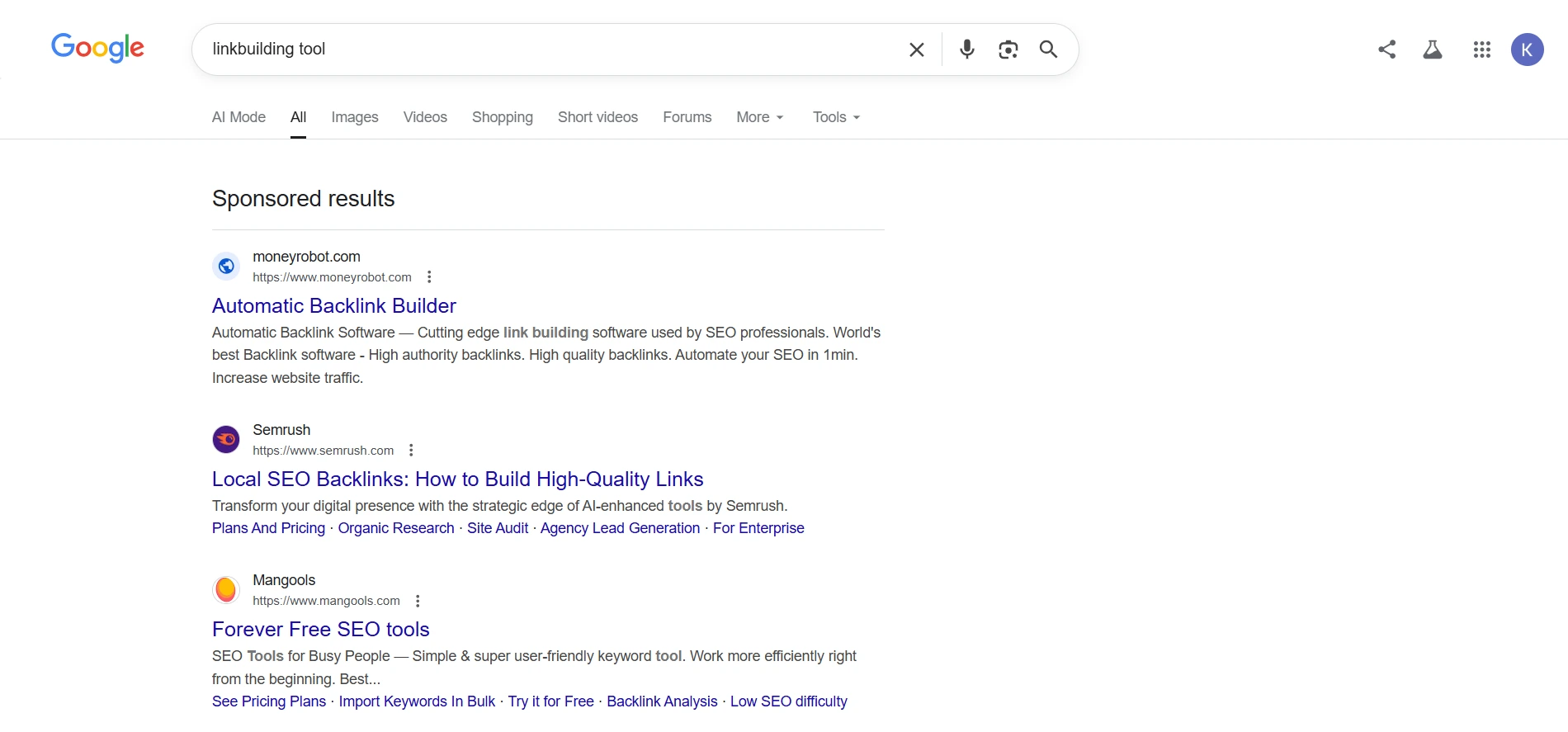
Open an incognito browser window, search your target keyword, and count positions to find your page. Using incognito mode helps you get more neutral results, as it reduces the impact of personalization factors, though results may still be influenced by your location.
This method is fast but limited because Google still personalizes results based on your location and device.
Process:
- Open incognito mode (Chrome: Ctrl+Shift+N; Firefox: Ctrl+Shift+P; Safari: Cmd+Shift+N)
- Navigate to google.com without signing in
- Search your exact keyword phrase and count your keyword position. Organic #1 starts after ads and map packs
- Record the position, device, and date in a spreadsheet
- Repeat from mobile and desktop to capture device variations
A search from New York may show position 4 while Phoenix shows position 7 due to localized ranking factors.
⚠️ Why Your Google Search Shows Different Rankings?
When you search for your own website on Google, you see personalized results based on your location, search history, and whether you have clicked your site before.
That is why you might see your site ranking #3 while a colleague in another city sees it at #8.
Incognito mode removes search history but does not hide your IP location, which is why rankings can still vary by city.
Limitations: Manual checking works for tracking 5–10 keywords monthly but becomes impractical for larger keyword sets. Use this method for quick validation, not systematic tracking.
2) Using Google Search Console
Best for: Accurate, long-term rank tracking for any site size (our #1 recommendation)
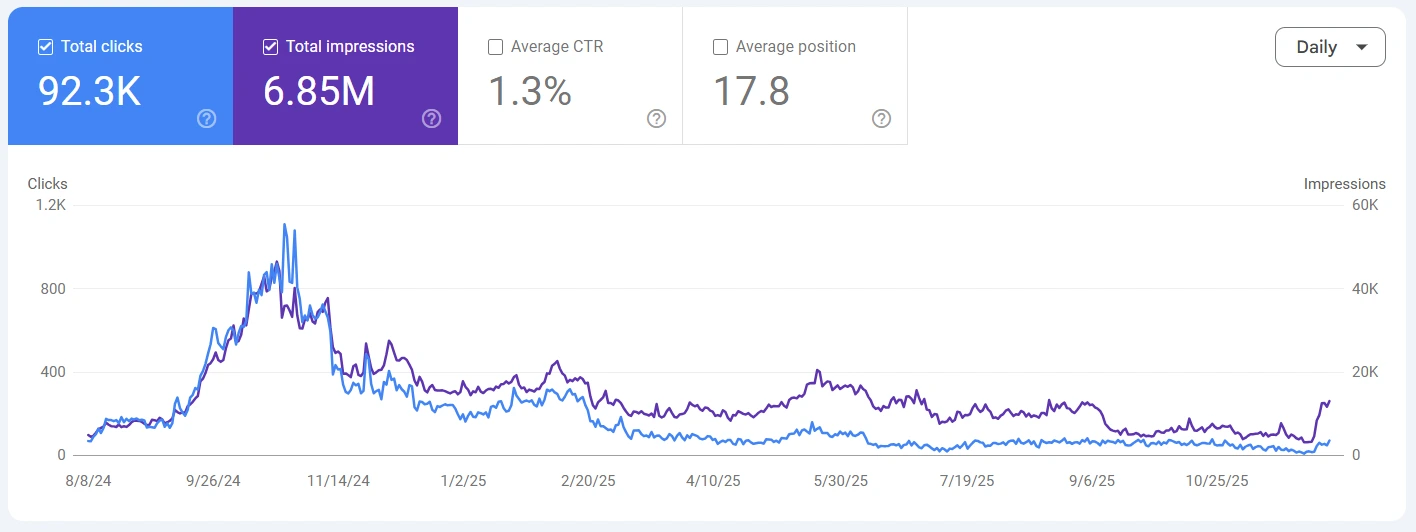
Google Search Console shows your actual average position across thousands of real searches with extensive historical data. This is the most accurate free method available because the data comes directly from Google.
Setup process:
- Verify your website domain at search.google.com/search-console
- Wait 24–48 hours for Google to populate initial data
- Navigate to Performance > Search results
- Enable all metrics: Total clicks, Total impressions, Average CTR, and Average position
- Use + New filter to track specific pages or queries
- Set the date range to Last 3 months for trend analysis
- Export data via the top-right icon for spreadsheet tracking
Filtering options:
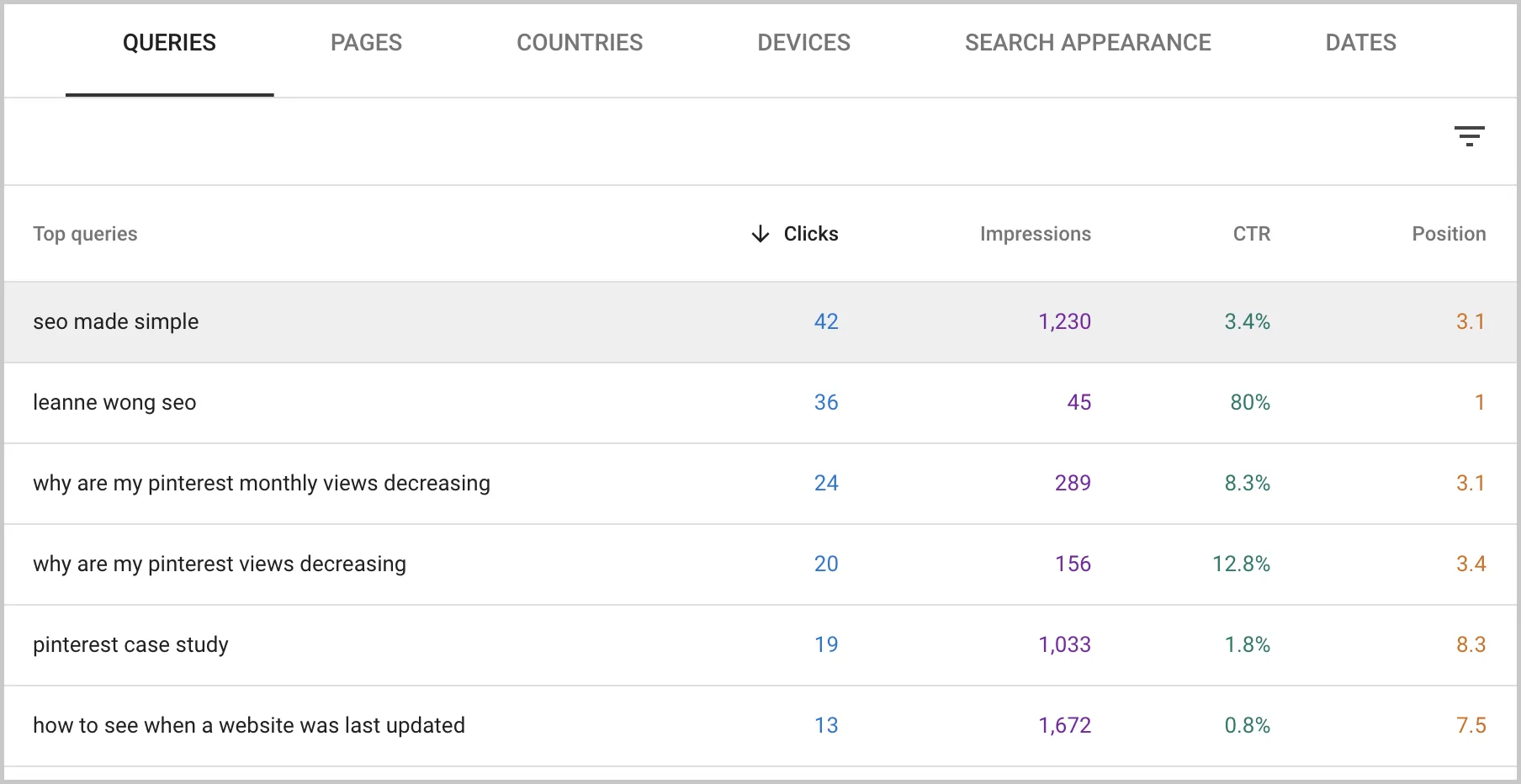
- By keyword: View the Queries tab to see all ranking keywords sorted by clicks
- By page: Check the Pages tab to see which keywords each of your web pages ranks for
- By device: Apply Device filter to separate mobile, desktop, and tablet positions
- By country: Use Country tab to view geographic ranking variations
You can use device and country filters to analyze your top keywords and their performance across different devices and locations.
GSC updates with a 2 day delay. Use the Compare feature to evaluate position changes between date ranges.
Common GSC issues and solutions:
- No data showing? Verify your site was added correctly and wait 48-72 hours for initial data population
- Positions seem wrong? Remember GSC shows averages across thousands of searches. Filter by specific dates and devices for more granular data
- Massive position changes overnight? Check if Google added SERP features (featured snippets, local packs, knowledge panels) that pushed organic results down without changing your actual ranking
- Queries you don’t recognize? GSC shows actual user searches, including misspellings and long-tail variations you didn’t specifically optimize for. These reveal how users actually find you
Helpful resources:
📊 Why GSC Shows Decimal Positions (Like 2.4)
Google Search Console shows an average position because your page does not rank the same for every search.
For example, if your page ranked #2 in 60% of searches and #3 in 40%, GSC would display 2.4 as the mathematical average.
This is why you never see a position like 2.4 when you manually search on Google.
GSC averages thousands of searches to show your true performance across different users, locations, and devices.
Why GSC is better than manual checking: You see actual click data (not just rankings), historical trends, and unbiased position averages across thousands of searches. This is the gold standard for free rank tracking.
3) Using Free Rank Checker Tools
Best for: When you need automated daily checks or location-specific data GSC doesn’t provide
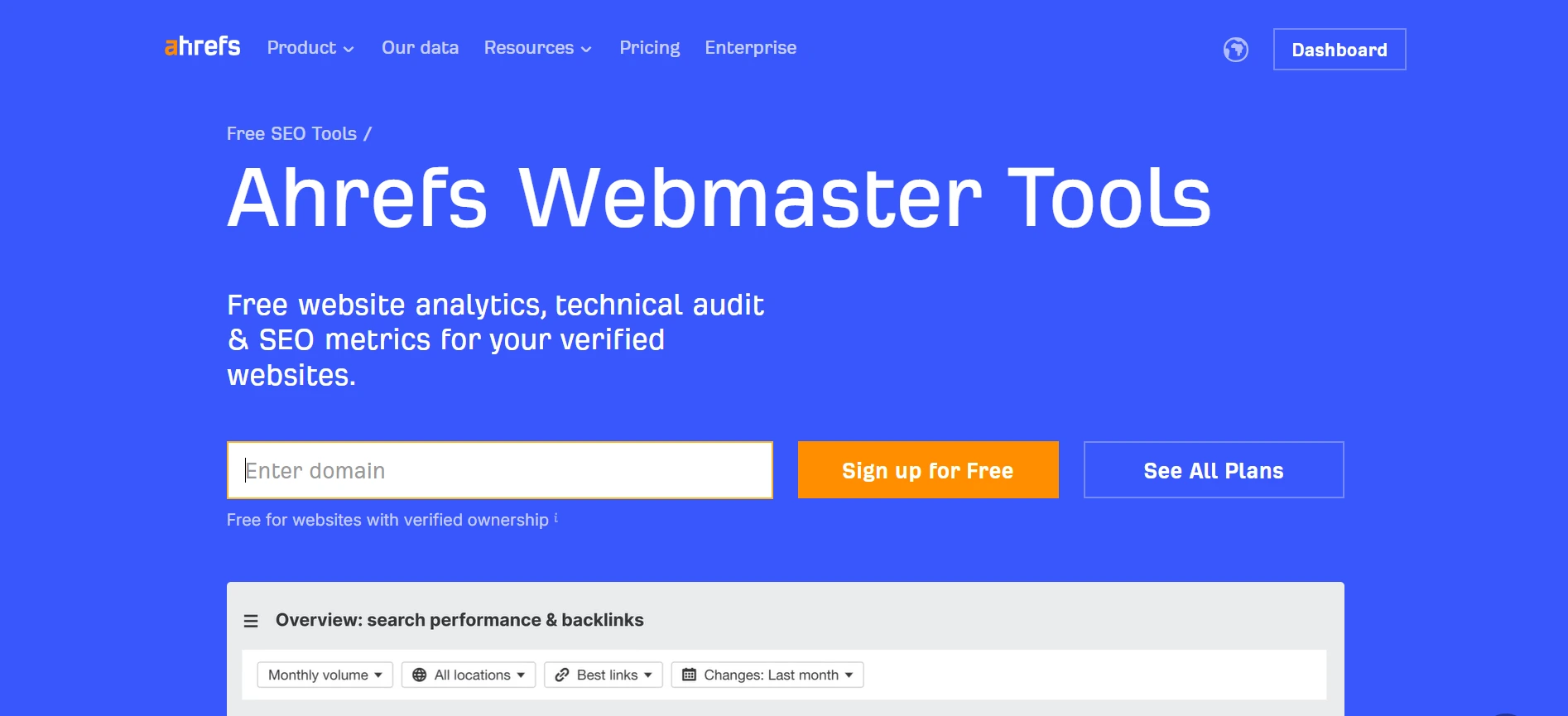
There are many more free SEO tools available for checking your website’s ranking. Free tools automate position tracking for multiple keywords daily, though most limit checks to prevent abuse.
These tools act as SEO ranking checkers and SEO tools, helping you monitor your keyword rank, keyword position, and where your site ranks for specific keywords.
| Tool | Daily Free Checks | Devices | Historical Data | Best For |
| Ahrefs Webmaster Tools | Limited free tier | Desktop | Several months | Site owners tracking priority keywords |
| Ubersuggest | 3 queries per day | Desktop | Limited | Quick spot checks |
| SE Ranking | Free trial available | Mobile + Desktop | Trial period | Evaluating before purchase |
| Google Search Console | Unlimited (own site) | All devices | Extended period | Primary tracking tool |
| Manual rank checkers | 1-5 checks per tool | Desktop | None | Single query verification |
How to use these tools:
- Sign up and verify your domain via DNS record, HTML upload, or Google Analytics
- Enter your keyword list while respecting daily limits
- Select location and device preferences
- Run initial check and bookmark the results
- Return weekly or monthly to compare position changes
Third-party checkers query Google from data center IPs without personalization. Cross-reference with GSC average position to confirm accuracy. Using these tools helps you monitor your website’s performance in search results.
Google Rank Checker Tool Features
A Google Rank Checker tool is an essential resource for anyone serious about tracking and improving their website’s performance on Google.
Key features of a Google rank checker tool include the ability to track keyword rankings over time, analyze search volume for your target keywords, and identify valuable SERP features such as featured snippets.
Many rank checker tools also offer competitive analysis, allowing you to compare your website’s ranking data with that of your competitors and discover new strategies to outrank them.
With a user-friendly interface and up-to-date data, these tools make it easy to monitor your keyword positions, spot trends, and adjust your SEO strategies for better results.
Keyword Research and Optimization
Use rank tracking along with understanding what link building is to improve your site’s rankings.
Effective keyword research is the foundation of any successful SEO strategy. By identifying the most relevant keywords and phrases your audience is searching for, you can optimize your website’s content to match their intent and increase your chances of ranking higher in search engines.
A google rank checker tool helps you discover which keywords your website already ranks for, as well as uncover new opportunities by highlighting gaps in your current keyword strategy.
Any SEO professionals and site owners participate in slack communities to exchange tips, discover link building opportunities, and stay informed about industry trends.
With this data, you can refine your content, target high-potential keywords, and improve your site’s visibility in search results.
Regularly using a rank checker tool to track your keyword positions ensures you stay on top of changes in search trends and continue to drive more organic traffic to your website.
Local SEO Strategies
For businesses targeting customers in specific cities or regions, local SEO is crucial for standing out in search results. The google rank checker tool enables you to track how your website ranks for location-specific keywords, helping you understand your visibility in different geographic areas.
By analyzing your performance for searches in specific cities, you can identify where your local SEO efforts are succeeding and where there’s room for improvement.
Optimizing your website with local keywords, creating location-based content, and monitoring your rankings with a rank checker tool are effective strategies to boost your presence in local search results.
This targeted approach ensures your business appears in front of more people searching for your services in your area, driving more relevant traffic to your site.
Understanding Your Position Data
The top organic result achieves a 27.6% click-through rate, position 2 drops to 15%, and position 3 falls to 9%.
This CTR gradient explains why small ranking improvements create massive traffic gains. Moving from position 4 to position 2 can double your clicks without changing any content. Many marketers also focus on building authority links as a primary strategy to increase search visibility and organic traffic, along with their keyword and technical improvements.
What your position means:
- 1.0–3.0: Top three ranking. You’re capturing most available clicks. Look for featured snippet opportunities to increase visibility further
- 3.1–10.0: First page ranking. You’re getting traffic but missing the big prize. Focus on improving content quality and earning authoritative links to help you rank higher on Google. If you need high-quality links quickly, explore services to buy backlinks from vetted providers.
- 11–20: Second page ranking. Minimal traffic. Audit whether your content matches user search intent
- 21+: Page three or lower. Nearly zero traffic. Consider creating new optimized content or redirecting to stronger pages
Real-world data shows that improving from position 4 to position 2 typically doubles or triples click volume even when search volume stays constant. The CTR difference between positions 4 (around 5-6%) and position 2 (15%) explains why small ranking improvements create disproportionate traffic gains.
Track position changes alongside click data in GSC to assess actual impact. A drop from position 3 to 5 that maintains the same click volume indicates SERP layout changes (like Google adding a featured snippet), not true ranking loss.
Remember, other factors such as technical SEO, user experience, and site performance also influence your ability to rank higher, not just content quality and keywords. For better control over how links behave and improve user security, always consider using rel = noopener noreferrer when adding outbound links.
Mobile vs Desktop Rankings
Mobile and desktop can show different rankings by 3–10 positions for the same keyword.
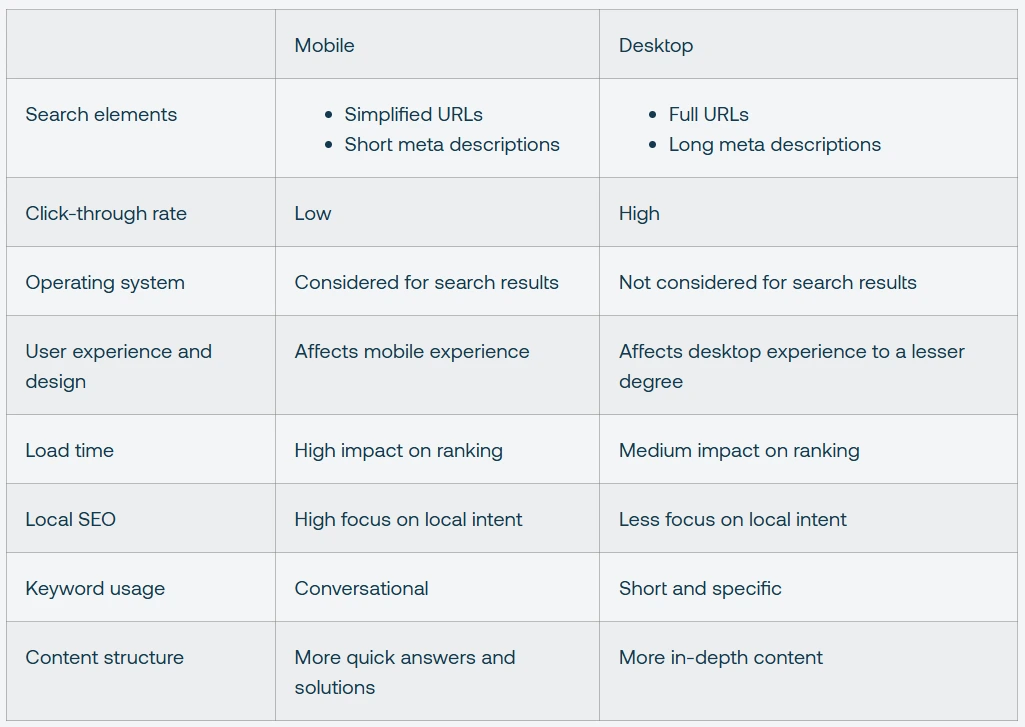
Mobile users experience a 39.03% CTR drop from position 1 to position 2, while desktop shows a 53.45% drop. This means mobile rankings matter even more, position 2 on mobile loses nearly 40% of position 1’s traffic.
Why rankings differ by device:
- Mobile algorithms penalize slow-loading pages more heavily
- Poor mobile usability (small tap targets, horizontal scrolling) tanks mobile rankings
- Mobile searches trigger local results more aggressively via GPS data
- Fewer results display above the fold on mobile screens
- Certain content types, such as videos, may appear more prominently on either mobile or desktop search results, affecting ranking visibility
How to track both:
- In Google Search Console’s Performance report, apply the Device filter
- Compare average position between mobile and desktop for your top 10 keywords
- Investigate any queries showing 5+ position gaps using Google’s Mobile-Friendly Test
- Use rank checkers with device selection to verify specific positions
⚡ Pro Tip: Check Mobile Rankings First
Check Google Analytics to see what percentage of your traffic comes from mobile. If it is 70% or more, which is common for many sites, prioritize checking and improving mobile rankings before desktop.
Many website owners spend time optimizing for desktop even though most of their audience searches on phones.
Use the Device filter in Google Search Console to see where your traffic actually comes from, then focus your optimization efforts accordingly.
If your traffic is 70% mobile, fix mobile ranking problems first. Desktop improvements can wait.
Quick mobile ranking improvement checklist:
- Open GSC Performance report and apply Device filter (select Mobile)
- Sort by Impressions to find your highest-traffic keywords
- Identify keywords where mobile position is 5+ spots worse than desktop
- Run those pages through Google’s Mobile-Friendly Test and PageSpeed Insights Common fixes: Compress images, increase tap target sizes to 48×48 pixels minimum, eliminate horizontal scrolling
- Re-check rankings 2-3 weeks after implementing fixes
- Monitor the Compare feature in GSC to measure improvement
When Free Tools Aren’t Enough?
Google Search Console and free rank checkers work perfectly for most websites. But there are specific scenarios where upgrading to paid tools makes financial sense.
Upgrade if you:
- Track 50+ keywords and spend 2+ hours weekly on manual checking
- Need competitor tracking (GSC only shows YOUR rankings, not competitors)
- Manage multiple client sites as an agency (need white-label reporting and automated delivery)
- Track local rankings across 10+ cities (GSC shows country-level data only)
- Require 12-24 months of historical trending data (GSC provides extended history but paid tools offer longer)
- Need API access to integrate ranking data into custom dashboards
Typical paid tool costs: $50-$200+ monthly depending on keyword volume and features.
💰 Calculate Your ROI Before Upgrading
If you’re spending 8 hours monthly on manual rank tracking (worth $200 at $25 per hour), a $100 per month tool that automates everything can pay for itself immediately.
But if Google Search Console already meets 90% of your needs and you only check rankings once a month, paid tools may not be necessary.
Run the math on your actual time investment before upgrading.
Our recommendation: Exhaust free tools first. Most small businesses and individual bloggers never require paid tools.
E-commerce sites with 200+ product pages and agencies managing multiple clients see the clearest ROI from automation. Popular options include Ahrefs, SEMrush, SE Ranking, and AccuRanker, most offer free trials.
For those looking for more streamlined solutions to manage and track link acquisition, consider incorporating backlink software to automate and optimize your outreach and reporting processes.
Frequently Asked Questions
1) How often should I check my Google rankings?
Check monthly for general maintenance or weekly during active SEO campaigns. Daily checking isn’t necessary since rankings fluctuate naturally by 1–2 positions, while meaningful shifts take weeks to develop.
2) Why is my website not ranking on Google?
Common causes include indexing blocks in robots.txt, page speed exceeding 3 seconds, or targeting competitive keywords without sufficient backlinks. Use GSC’s URL Inspection tool to confirm indexing status first.
3) What’s the difference between average position and actual rank?
Average position calculates the mean across all searches. Position 2 in 60% and position 5 in 40% shows an average 3.2. Actual rank is the specific position you see when searching manually at a given time and location.
4) Can I check my competitors’ rankings for free?
Free tools with limited daily searches and manual incognito searches work for spot-checking 5–10 keywords. Systematic competitor tracking across 50+ keywords requires paid tools with dedicated competitor monitoring features.